
It’s a frustrating nightly ritual: you sit down to stream a show, join a video call, or finish work at 7 PM, only to be met with buffering, lag, and glacial load times. Is your internet provider throttling your speed, or is something else at play? The culprits are simpler than you think: crowded Wi-Fi channels from nearby homes and simultaneous heavy usage by your own family. The good news is that three targeted fixes—channel optimization, smart QoS settings, and Wi-Fi 6 upgrades—can eliminate the evening slowdowns without costly service changes. Let’s break down the science, data, and practical solutions.
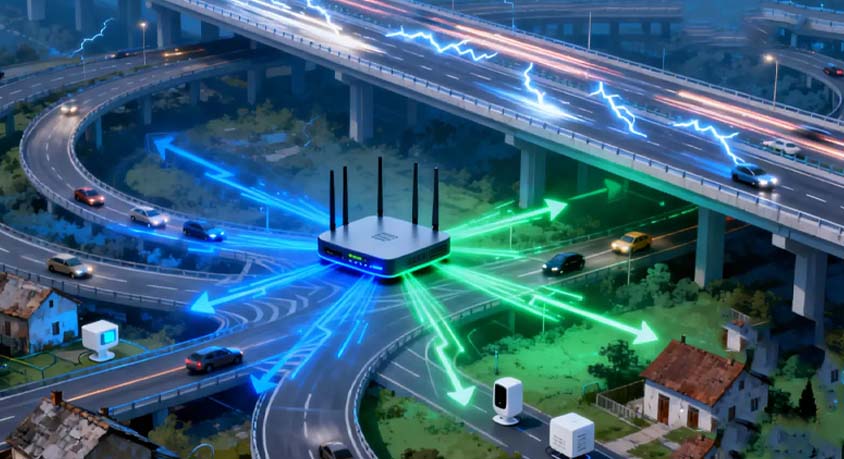
To understand the first cause—neighborhood channel congestion—we need to look at how Wi-Fi signals work. Most home networks use either 2.4GHz or 5GHz bands, but 2.4GHz is the main culprit for evening slowdowns. This band only has 11 overlapping channels in most regions, and routers often default to the same few (1, 6, 11), leading to overcrowding in apartment buildings or dense neighborhoods. A single apartment can be covered by 10+ neighboring Wi-Fi networks, all competing for the same bandwidth. In contrast, the 5GHz band offers 21 non-overlapping channels, drastically reducing interference, but its signal struggles to penetrate walls—losing 90% of strength through drywall compared to 70% for 2.4GHz. By 7 PM, when everyone is home using their devices, this competition turns into gridlock, with speeds dropping by 40-60% compared to midday.
The second cause is simultaneous household usage, which pushes your network to its limits. Modern families typically have 8-12 connected devices—laptops, phones, smart TVs, game consoles, and smart home gadgets—all pulling data at once. A 4K streaming session requires 25Mbps, a group video call needs 3-10Mbps per person, and online gaming demands low latency (under 50ms) to avoid lag. When your kid is gaming, your partner is video conferencing, and your teen is streaming TikTok—all while the smart fridge updates and the security camera uploads footage—your router can’t keep up. Traffic data shows that evening household bandwidth usage spikes by 2-3 times compared to daytime, overwhelming older routers that lack the processing power to handle multiple high-demand streams.
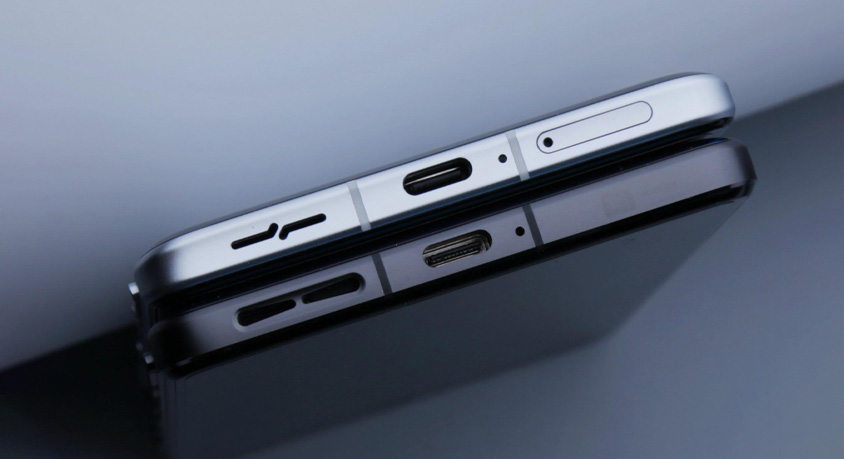
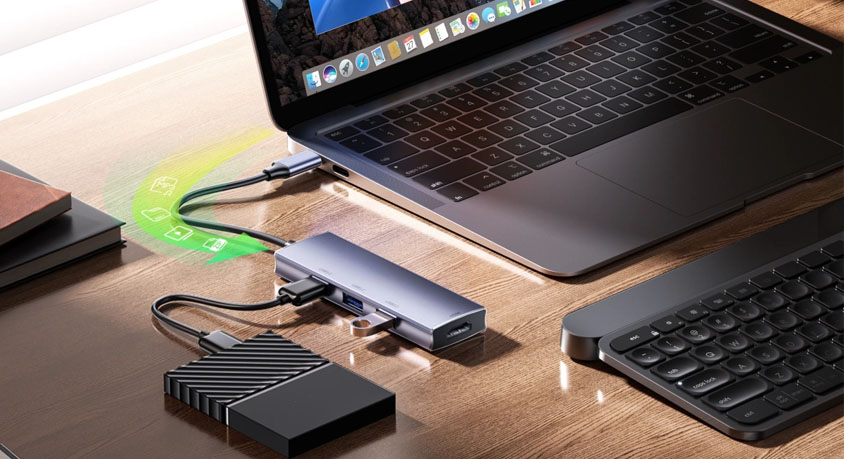
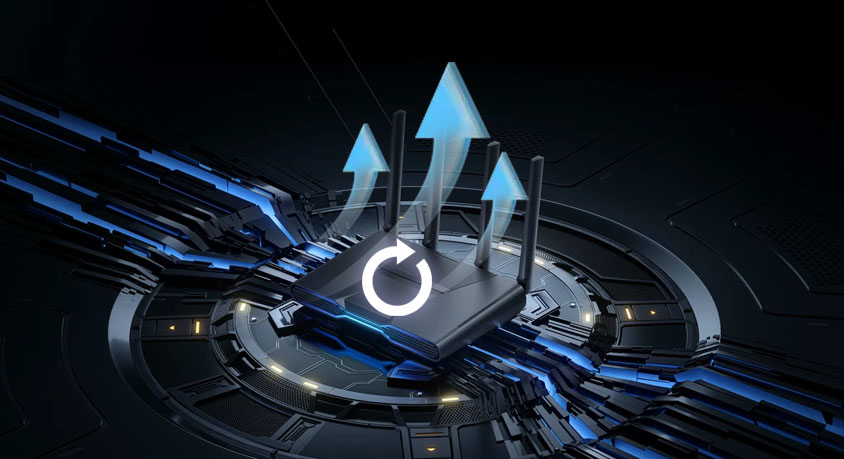
The physical design of routers plays a role in how well they handle these pressures. Older routers often have single-core processors and limited antenna arrays, struggling to manage more than 4-6 concurrent devices. They’re also bulkier, with poor heat dissipation, which can slow performance during extended use. In contrast, modern Wi-Fi 6 routers feature multi-core processors, beamforming antennas, and compact, ventilated designs that maintain speed even under heavy load. Their sleek, minimalist build fits unobtrusively on shelves or desks, while their multiple Ethernet ports and USB connections add versatility for wired devices like gaming consoles or smart TVs.

Real-world scenarios highlight the impact of these issues. A family in a suburban neighborhood finds their movie night ruined by buffering—their router is stuck on crowded channel 6, competing with five neighbors. A remote worker trying to join an evening team call experiences constant lag, as their partner’s 4K stream and kid’s online game hog all the bandwidth. Conversely, a household that switches to a less crowded 5GHz channel and enables smart QoS reports smooth streaming and glitch-free video calls, even with three people using devices simultaneously.
The first fix—using a Wi-Fi analyzer tool—is quick and low-cost. These tools scan nearby networks, showing channel usage and signal strength, so you can switch your router to the least crowded option. For 2.4GHz, channels 1, 6, and 11 are non-overlapping, but if those are busy, tools can identify underused channels like 3 or 8. For 5GHz, aim for channels in the upper range (149-161), which are often less congested. This simple change can boost speeds by 30-50% in crowded areas, with no hardware upgrades needed.
The second fix—smart QoS (Quality of Service)—acts as a traffic cop for your network. Most modern routers have this feature, allowing you to prioritize critical tasks like video calls or gaming over less time-sensitive activities like file downloads or smart home updates. You can allocate 50% of your bandwidth to real-time tasks, ensuring they get priority even when other devices are streaming or browsing. Studies show that QoS can reduce video call lag by 40% and eliminate buffering for streaming, making it ideal for remote workers and families with conflicting usage needs.
The third fix—upgrading to a Wi-Fi 6 or 6E router—addresses the root cause of concurrent device overload. Wi-Fi 6 offers a maximum theoretical speed of 9.6Gbps (three times faster than Wi-Fi 5) and supports 8+ concurrent devices without performance drops. It uses advanced technologies like OFDMA, which lets the router send data to multiple devices at once, reducing latency and congestion. Wi-Fi 6E adds the 6GHz band, with even more non-overlapping channels and less interference, perfect for dense neighborhoods. While more expensive than older models, Wi-Fi 6 routers future-proof your network for new devices like 8K TVs or virtual reality headsets.
Like any technology, these fixes have tradeoffs. Wi-Fi analyzers require manual setup and periodic rechecks as neighborhood usage changes. Smart QoS needs initial configuration to prioritize the right tasks, which can be confusing for less tech-savvy users. Wi-Fi 6 routers offer the best performance but come with a higher price tag—though their longevity makes them a worthwhile investment for large families or heavy users. These solutions are ideal for anyone in dense neighborhoods or households with multiple devices, from remote workers to streaming enthusiasts. They’re less necessary for rural users with few neighbors or single-person households with minimal device usage.
Practical guidance for implementing these fixes: First, download a Wi-Fi analyzer tool and switch your router to the least crowded channel—do this during evening peak hours for the most accurate scan. Second, access your router’s settings to enable smart QoS, prioritizing video conferencing, gaming, and work applications. Third, if you have 5+ devices or frequently experience lag, upgrade to a Wi-Fi 6 router, and pair it with a range extender if your home has dead spots. Fourth, connect high-demand devices like gaming consoles or laptops via Ethernet for a more stable connection. Fifth, schedule large downloads or updates for off-peak hours (before 5 PM or after 10 PM) to free up bandwidth during evening use.