
It’s a common habit for many users: yanking an external SSD from their computer once the file transfer progress bar disappears, assuming the lack of moving parts means no risk. But does this casual approach put your data in danger? The answer is unequivocally yes—ejecting your external SSD is a critical step, even though SSDs lack mechanical components. The core risk lies in write caching: operating systems temporarily store data in high-speed memory before transferring it to the SSD, and unsafe removal can interrupt this process, leading to corrupted files or permanent data loss. The few seconds spent ejecting are a tiny investment compared to the cost of recovering lost work. Let’s break down the science, data, and practical implications.
To understand why ejection matters, we first need to examine how data moves between your computer and external SSD. Modern operating systems use write caching to optimize performance—since RAM operates at speeds up to 10x faster than even high-speed SSDs (with typical RAM transfer rates of 20-30GB/s versus SSDs at 2-3GB/s), the system temporarily holds data in memory before writing it to the drive. This makes file transfers feel faster, as the progress bar completes when data reaches RAM, not the SSD itself. The default write cache size ranges from 4MB to 16MB on most systems, but for large file transfers (like 4K video or raw photo libraries), this cache can expand to hundreds of megabytes. Ejecting the SSD triggers a “flush” command, ensuring all cached data is fully written to the drive before severing the connection.
Data from storage reliability tests highlights the risk of skipping this step. Laboratory experiments simulating real-world use found that directly unplugging an SSD after transferring large files resulted in data corruption 27% of the time, compared to a 0.3% failure rate when ejecting first. These failures manifest as logical damage—files that won’t open, missing data segments, or corrupted partition tables—which can be recovered only 80% of the time with specialized software. For professional users storing irreplaceable work—such as photographers’ RAW images, video editors’ project files, or programmers’ code—this risk is unacceptable. Even for casual users, losing family photos or important documents can be devastating, with data recovery services costing hundreds of dollars.
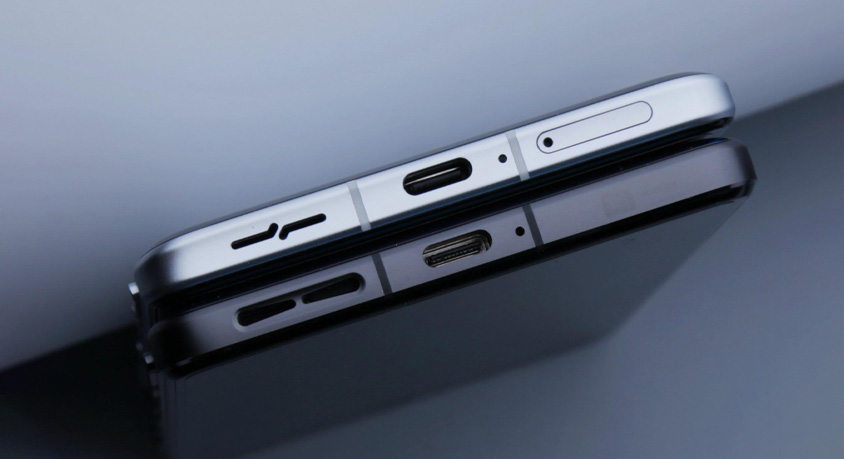
The physical design of external SSDs contributes to the misconception that they’re “plug-and-play without precautions.” Most modern external SSDs are compact, lightweight (typically 50-120 grams), and encased in durable materials like aluminum or rubberized plastic, with a single Type-C or USB-A port for connectivity. Their silent operation and resistance to physical shock (many withstand 3-meter drops) reinforce the idea that they’re invulnerable. But this rugged exterior masks the delicate data transfer process happening in the background. Unlike mechanical hard drives, which suffer physical damage from sudden disconnection, SSDs face logical damage from interrupted write operations—an equally serious threat that’s less visible but no less costly.
Real-world scenarios illustrate the consequences of unsafe removal. A freelance designer working on a client’s branding project transfers 20GB of high-resolution assets to an external SSD, then unplugs it immediately after the progress bar finishes. When they open the drive on their client’s computer, half the files are corrupted, forcing them to rework 10 hours of design. A student storing their thesis on an external SSD pulls it from their laptop to rush to class, only to find the document won’t open—months of research at risk because the final edits were still in the write cache. Conversely, a video producer who consistently ejects their SSD avoids data loss even after dozens of transfers weekly, maintaining workflow continuity and client trust.
Operating systems offer safeguards, but they’re not foolproof. Features like “Quick Removal” mode disable write caching entirely, allowing safe unplugging without ejection, but this comes at a steep performance cost—transfer speeds drop by 30-40% because data must be written directly to the SSD without RAM buffering. Most users leave write caching enabled for better performance, which restores the need for ejection. Some systems include notification lights that indicate active data transfer, but these lights often turn off when the cache is filled, not when the data is fully written to the SSD, creating a false sense of security. This is where SSD status indicator lights or data sync confirmation software prove valuable, providing clear visual cues that the drive is safe to remove.
Like any data safety practice, ejecting an external SSD has tradeoffs. Its primary advantage is near-perfect protection against cache-related data loss, a benefit that far outweighs its only downside—taking 2-3 seconds to complete. It’s ideal for anyone storing important data: professionals, students, photographers, and anyone who values their files over minor convenience. It’s less critical for users transferring non-essential data (like temporary downloads or streaming files) where corruption would be an annoyance rather than a crisis, but even in these cases, the habit of ejecting builds good practices that prevent mistakes with important data later.
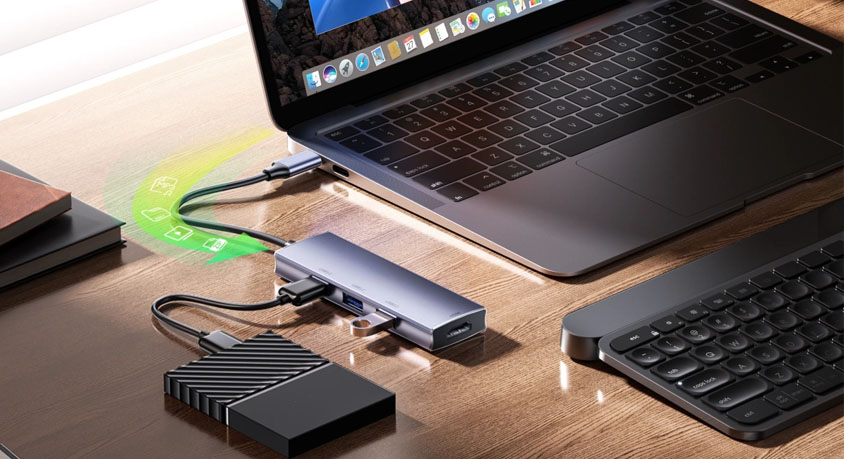
Practical guidance for safe SSD use: First, always eject your external SSD through your operating system’s designated function—never pull the cable while files are transferring or immediately after the progress bar ends. Second, use an SSD with a built-in activity light to visually confirm no ongoing data operations. Third, consider a USB hub with a dedicated safe eject button for one-click peace of mind, especially if you use multiple external drives. Fourth, enable write caching for performance but avoid relying on “Quick Removal” mode unless you need frequent unplugging. Fifth, if you accidentally unplug without ejecting, avoid writing new data to the drive and run a file integrity check to identify potential corruption early.
In summary, ejecting an external SSD before unplugging is a simple, essential step to protect your data. The lack of mechanical components in SSDs eliminates one type of risk but doesn’t address the write cache issue that causes most data loss. The minimal time investment in ejecting far outweighs the potential cost of corrupted files or lost work. By understanding the underlying mechanics of write caching and adopting safe practices, you can ensure your external SSD remains a reliable storage solution for years. Choosing accessories like status indicators or eject-button hubs enhances this safety without sacrificing convenience, making data protection effortless.